Recognize 13 languages
Choose the language that matches the scan to improve the usefulness of the recognition result.
Use Folio PDF Studio to recognize text locally across 13 supported OCR languages, then search, review, edit, organize, convert, or print the document.
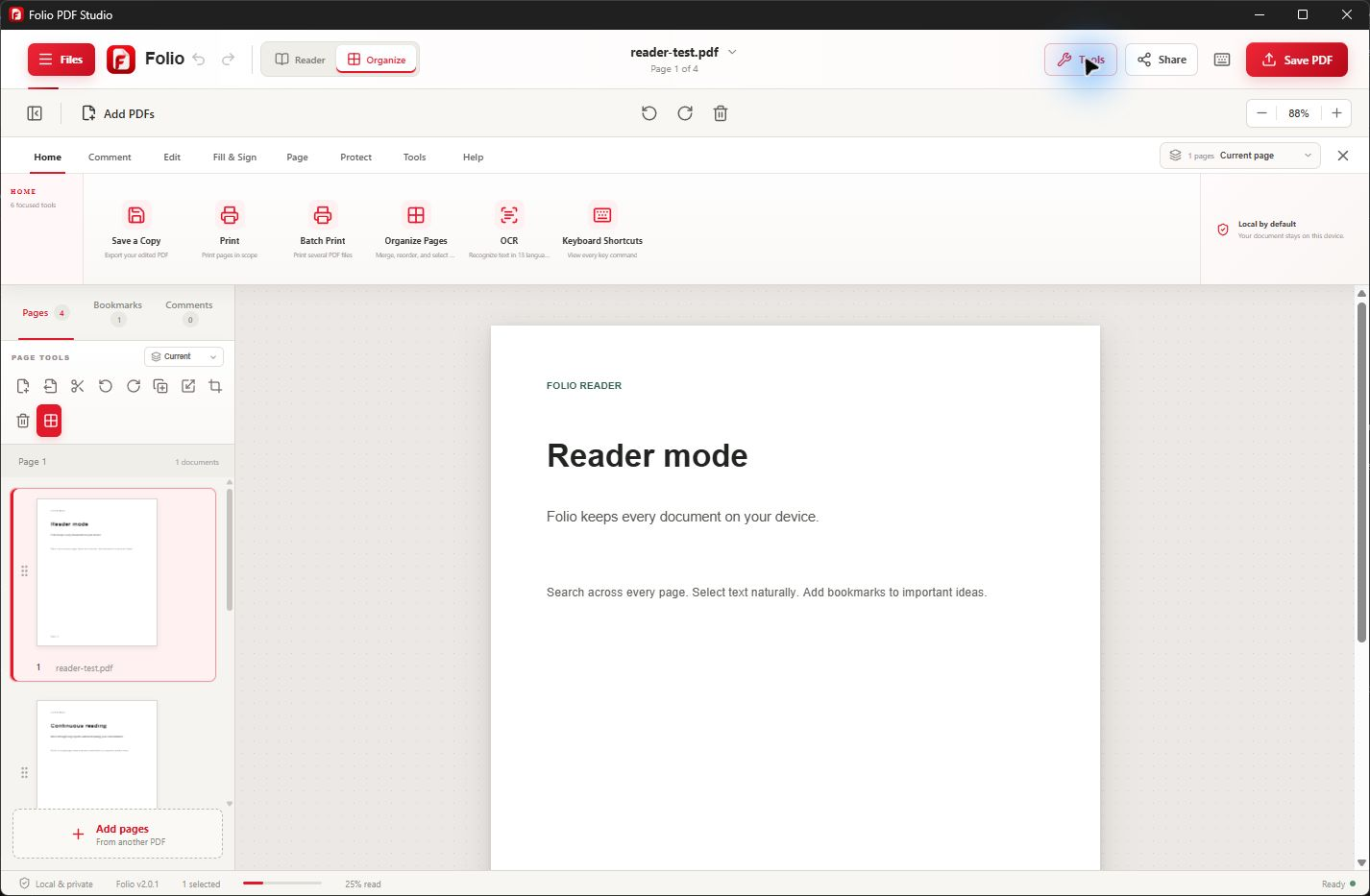
A focused Windows workflow
Scanned PDFs often look like documents while behaving like images. OCR identifies supported text so the content can be searched and used in the rest of the PDF workflow.
Folio runs OCR locally and supports English, Arabic, Chinese, French, German, Hindi, Italian, Japanese, Korean, Portuguese, Russian, Spanish, and Turkish. Recognition quality depends on scan clarity, page layout, and the selected language.
Useful from the first document
Folio keeps related PDF tasks together so you can finish the document without moving sensitive content between unrelated services.
Choose the language that matches the scan to improve the usefulness of the recognition result.
Run OCR on the Windows device without uploading document images or extracted text to Folio servers.
Find words and phrases across supported scanned pages after recognition is complete.
Use recognized content as part of the broader edit, review, and document-preparation workflow.
Reorder, rotate, crop, extract, combine, or split pages before saving the finished PDF.
Move recognized document content into supported Word, Excel, PowerPoint, and presentation workflows.
Simple by design
Keep the original as a backup. Open a PDF you are authorized to use, check that pages are upright and readable, and enter its password if required. If the text is already selectable and searchable, OCR may not be necessary.
Open the OCR tool, choose the language used on the scanned pages, and run recognition. Start with a small document or page selection when available so you can judge the result before processing a large scan.
Search for a phrase visible on the page and compare recognized names, dates, and numbers with the scan. Save a separate PDF and reopen it to check the result. Use Word export for a larger rewrite, then review the exported text again.
Common questions
Core PDF processing stays on your Windows device. Folio does not upload document content to Folio servers.
Folio supports offline OCR in English, Arabic, Chinese, French, German, Hindi, Italian, Japanese, Korean, Portuguese, Russian, Spanish, and Turkish.
No OCR engine is perfect. Clear, straight, high-resolution scans and the correct language selection generally produce more useful results.
No. Folio does not upload PDF contents, extracted text, or OCR results to Folio servers.
Check the selected language, page orientation, blur, and contrast. A clearer source scan can help more than repeating recognition on the same unreadable image. Compare important names and numbers manually; a searchable PDF can still contain recognition mistakes.
Not necessarily. Recognizing text and reconstructing an editable page layout are different tasks. A searchable text layer does not guarantee that each paragraph can be edited like a Word document. Read the PDF editing guide.
Recognize the scan first, then use Word export. Compare the exported file with the original, especially tables, columns, and reading order. OCR does not guarantee an exact reconstruction. Follow the PDF-to-Word guide.
No. OCR recognizes visible page content; it is not a password-recovery tool. Use the correct password or ask the document owner for an accessible copy.
Contact support with your app version, the selected OCR language, and a description of the problem. Do not send confidential documents or passwords; use a non-sensitive sample if one is needed. Get Folio support.
One Windows app. One clear purchase.